

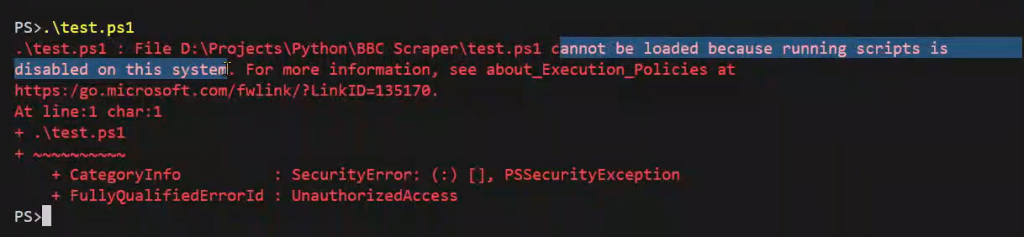
Ever faced that frustrating error in VS Code: “Cannot be loaded because running scripts is disabled on this system”? It’s a common problem, and trust me, I’ve been there too. It halts your workflow, especially when you’re eager to test your code. But don’t worry! This guide will walk you through simple solutions to get your scripts running in no time.

Understanding the Error
The “running scripts is disabled on this system” error is a security feature in Windows. It prevents potentially harmful scripts from executing on your computer. This is usually a good thing, protecting you from malicious code. However, it can become a nuisance when you’re trying to run your own scripts or scripts from trusted sources within VS Code.
The error message pops up because the execution policy set on your system doesn’t allow the execution of scripts. Think of it like a gatekeeper deciding which scripts are allowed to run.
How to Avoid AI Image Detection: What Actually Works — Undetect.Me
Solution 1: Setting the Execution Policy to RemoteSigned
The first and often the most effective solution is to change the execution policy to RemoteSigned. This policy allows scripts you’ve written yourself to run, but it requires scripts downloaded from the internet to be digitally signed by a trusted publisher. This strikes a good balance between security and convenience.
Here’s the command you need:
Set-ExecutionPolicy RemoteSigned -Scope CurrentUserLet’s break this down:
Set-ExecutionPolicy: This is the command that modifies the execution policy.RemoteSigned: This is the policy we’re setting. It allows locally created scripts to run without a signature.-Scope CurrentUser: This specifies that the policy change only applies to the current user. This is generally safer than changing the policy for the entire system.
Steps to Apply the RemoteSigned Execution Policy:
- Open your VS Code integrated terminal.
- Type or paste the command
Set-ExecutionPolicy RemoteSigned -Scope CurrentUserinto the terminal. - Press Enter.
- If prompted, type
A(for “Yes to All”) and press Enter to confirm the change. - Try running your script again.
Why This Works:
This command tells PowerShell to allow scripts that you’ve created or trust to run, but it still maintains a level of security by requiring digital signatures for scripts from external sources.
Solution 2: Setting the Execution Policy to Unrestricted
If the RemoteSigned policy doesn’t solve the issue, you can try setting the execution policy to Unrestricted. This policy allows all scripts to run, regardless of their origin or digital signature. However, use this option with caution, as it significantly reduces your system’s security.
Here’s the command:
Set-ExecutionPolicy Unrestricted -Scope CurrentUserSteps to Apply the Unrestricted Execution Policy:
- Open your VS Code integrated terminal.
- Type or paste the command
Set-ExecutionPolicy Unrestricted -Scope CurrentUserinto the terminal. - Press Enter.
- If prompted, type
A(for “Yes to All”) and press Enter to confirm the change. - Try running your script again.
Important Note:
Using the Unrestricted policy is generally not recommended unless you fully understand the risks involved. It’s best to use this policy only temporarily for troubleshooting or when you’re working in a controlled environment where the risk of executing malicious scripts is low.
Solution 3: Running PowerShell as Administrator
Sometimes, you might encounter permission issues that prevent you from changing the execution policy. In such cases, you need to run PowerShell as an administrator.
Steps to Run PowerShell as Administrator:
- Press the Windows key.
- Type “PowerShell”.
- Right-click on “Windows PowerShell” in the search results.
- Select “Run as administrator”.
- A User Account Control (UAC) prompt will appear. Click “Yes” to grant administrative privileges.
- Now, you can execute either the
RemoteSignedorUnrestrictedcommand in the administrator PowerShell window.
Why This Works:
Running PowerShell as administrator gives you the necessary permissions to modify system settings, including the execution policy.
Solution 4: Restarting VS Code and the PowerShell Session
After changing the execution policy, it’s crucial to restart VS Code and the PowerShell session within VS Code. This ensures that the changes take effect properly.
Steps to Restart VS Code and PowerShell:
- Close VS Code completely.
- Open VS Code again.
- Close the current PowerShell terminal within VS Code.
- Open a new PowerShell terminal in VS Code.
- Try running your script again.
Troubleshooting and Additional Tips
- Check the Scope: Make sure you’re setting the execution policy for the correct scope. Using
-Scope CurrentUseris generally recommended for security reasons. - Verify the Policy: After setting the execution policy, you can verify it using the command
Get-ExecutionPolicy -List. This will show you the effective execution policy for different scopes. - Antivirus Software: Sometimes, antivirus software can interfere with script execution. Temporarily disabling your antivirus software (at your own risk) can help determine if it’s causing the issue.
- Group Policy: In some cases, Group Policy settings configured by your organization might override your personal execution policy settings. If you’re part of a domain, consult your IT administrator.
| Execution Policy | Description | Security Level |
|---|---|---|
| Restricted | No scripts can be run. Windows PowerShell can be used only in interactive mode. | Highest |
| AllSigned | Only scripts signed by a trusted publisher can be run. | High |
| RemoteSigned | Scripts downloaded from the internet must be signed by a trusted publisher; locally created scripts can be run. | Medium |
| Unrestricted | All scripts can be run. | Lowest |
| Bypass | Nothing is blocked, and there are no warnings or prompts. | N/A |
| Undefined | There is no execution policy set. The effective execution policy is determined by the Group Policy or the default Windows PowerShell behavior, which is usually Restricted. | N/A |
Key Takeaways
- The “running scripts is disabled on this system” error is a security feature in Windows.
- The most common solution is to set the execution policy to
RemoteSignedusing the commandSet-ExecutionPolicy RemoteSigned -Scope CurrentUser. - If
RemoteSigneddoesn’t work, you can tryUnrestricted, but be cautious due to security risks. - Run PowerShell as administrator if you encounter permission issues.
- Restart VS Code and the PowerShell session after changing the execution policy.
- Verify the policy using
Get-ExecutionPolicy -List.
FAQ Section
Q: Why am I getting this error in VS Code?
A: The error occurs because the execution policy on your system is preventing scripts from running. This is a security measure to protect your computer from potentially harmful code.
Q: Is it safe to set the execution policy to Unrestricted?
A: Setting the execution policy to Unrestricted is generally not recommended, as it significantly reduces your system’s security. Use it only temporarily for troubleshooting or when you’re working in a controlled environment.
Q: I’m still getting the error after trying all the solutions. What should I do?
A: Double-check that you’ve restarted VS Code and the PowerShell session after changing the execution policy. Also, verify the policy using Get-ExecutionPolicy -List to ensure that the changes have taken effect. Antivirus software or Group Policy settings might also be interfering.
Q: How do I revert the execution policy back to the default settings?
A: You can revert the execution policy to the default settings by using the command Set-ExecutionPolicy Restricted -Scope CurrentUser.
Q: What does the -Scope CurrentUser parameter mean?
A: The -Scope CurrentUser parameter specifies that the execution policy change only applies to the current user. This is generally safer than changing the policy for the entire system.
Q: Will this fix work for all types of scripts?
A: This fix generally works for most types of scripts, including PowerShell scripts, batch scripts, and other scripting languages that are executed through the PowerShell terminal in VS Code.
Q: Can I set the execution policy for a specific folder or project?
A: No, the execution policy is a system-wide setting and cannot be set for a specific folder or project.
I hope this guide helps you resolve the “running scripts is disabled on this system” error in VS Code and get back to coding! Let me know in the comments below if you have any questions or if you’ve found other solutions that worked for you. Happy coding!