

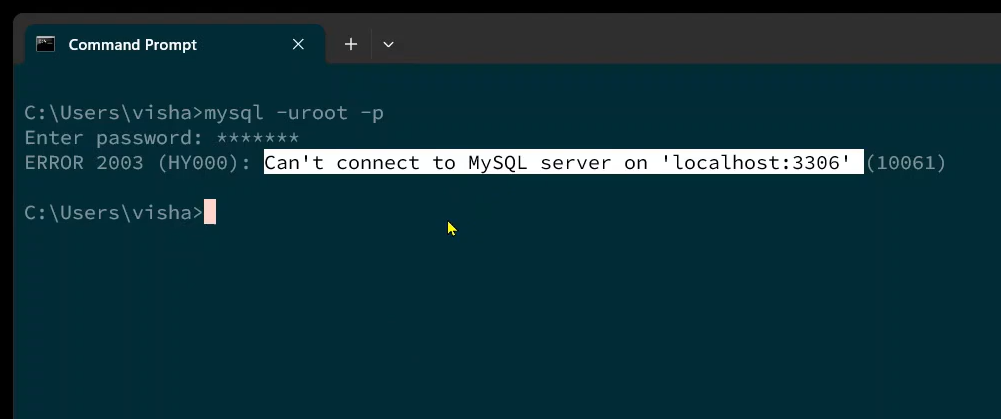
Ugh, that dreaded error message! “Failed to connect to MySQL server at localhost: 3306.” If you’re seeing this, you’re probably staring at your screen wondering why your application can’t talk to your database. Trust me, I’ve been there, tearing my hair out. It’s like your computer is speaking a different language, and you’re stuck in the middle, trying to translate. But don’t worry, I’m going to walk you through the most common solutions to get you back up and running, and I’ll keep it as painless as possible. We’ll break it down step-by-step, even if you’re not a command-line wizard. Let’s get this fixed!
AD: Avoid AI Image Detection: https://undetect.me/
If you’re a video person, check out the full detailed tutorial to fix the error here:

Understanding the Problem
First, let’s understand what this error actually means. The “Failed to connect to MySQL server at localhost: 3306” message essentially tells you that your application is trying to reach your MySQL server (which is supposed to be running on your own machine – “localhost”) on port 3306, but it’s not able to establish a connection. It’s like knocking on a door and nobody’s home… or the door is locked.
The ‘localhost’ part simply means your own computer (its IP address is often 127.0.0.1). Port 3306 is the default communication channel MySQL uses. If something’s blocking this connection, you’ll see that nasty error.

Solution 1: Is MySQL Even Running? (The Simplest Fix)
This is the most common culprit. MySQL might simply not be running. Think of it like this: your database server is a service that needs to be actively running in the background to accept connections. If it’s stopped, you can’t connect.
Here’s how to check and start the MySQL service (the GUI way, because who needs more command lines, right?):
- Press the Windows Key: This opens your Start Menu.
- Type “Services”: Start typing “services,” and you should see “Services” pop up in the search results. Click it.
- Find MySQL: In the Services window, click on any service and then press “M” to quickly scroll down to the services that start with “M”. Look for something like “MySQL80” or “MySQL” followed by a version number.
- Start the Service: If you see “MySQL80” (or similar) and the “Status” column is blank (or says “Stopped”), right-click on it and select “Start”.

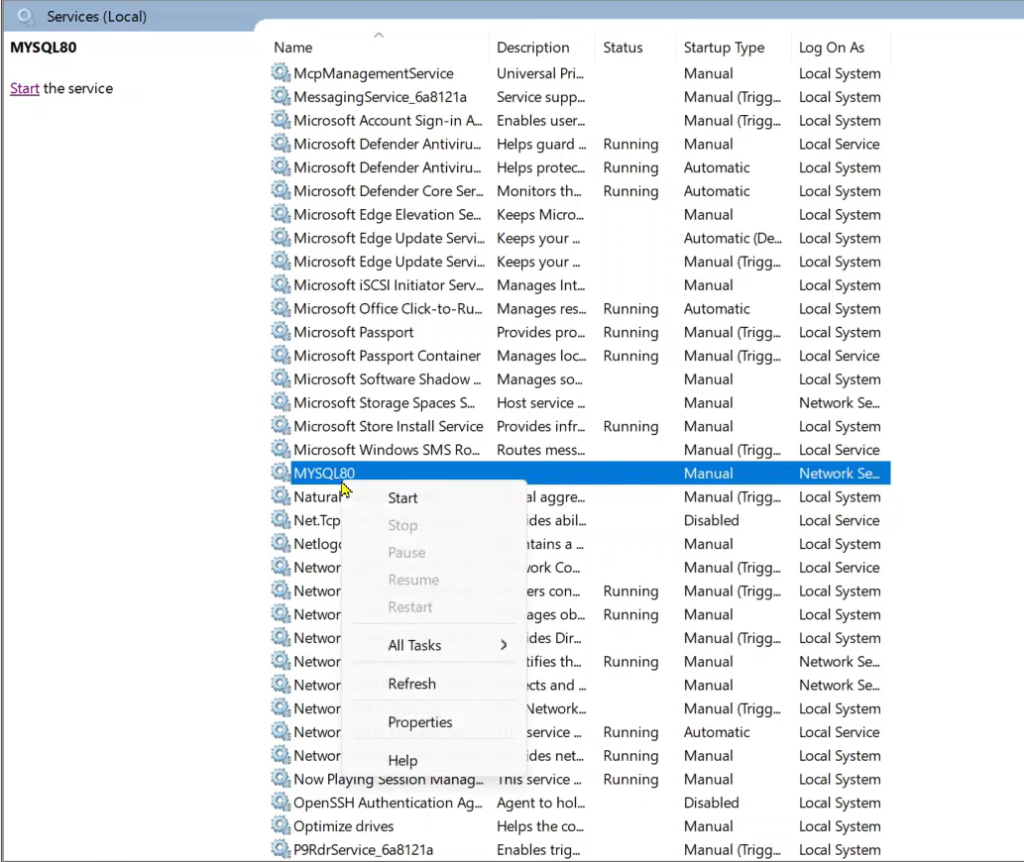
Give it a few seconds to start. Once it’s running, try connecting to your MySQL server again. Hopefully, this simple fix solves your problem. You’d be surprised how often this is the issue.
If This Worked… Awesome! You’re good to go. Go grab a coffee (or something stronger, I won’t judge).
If It Didn’t… Don’t panic. We have other tricks up our sleeves. Keep reading!
Solution 2: Another Application is Hogging Port 3306
Sometimes, another application might be using port 3306, preventing MySQL from using it. This is like someone else parking in your assigned parking spot. You need to figure out who the culprit is and either convince them to move or find another spot for yourself (i.e., change MySQL’s port).
Here’s how to check if another application is using port 3306:
- Open Command Prompt: Press the Windows key, type “cmd,” and hit Enter.
- Enter the Command: Type the following command and press Enter:
netstat -ano | findstr :3306This command lists all active network connections and then filters the results to show only the ones using port 3306.

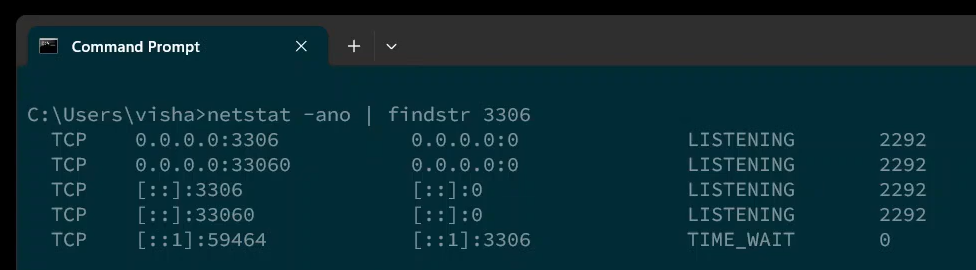
Understanding the Output:
- If you see a line with “0.0.0.0:3306” or “127.0.0.1:3306” in the output, it means something is indeed using that port.
- The important part is the number in the last column – that’s the Process ID (PID).
Finding the Culprit:
- Open Task Manager: Press Ctrl+Shift+Esc.
- Go to the “Details” Tab: (In older versions of Windows, it might be the “Processes” tab, but you might need to add the “PID” column)
- Find the PID: Look for the process with the PID you found in the command prompt output. This will tell you which application is using port 3306.
What to Do Next:
You have two options:
- Option A: Stop the Conflicting Application: If you know what the application is and you’re not using it, simply close it. This is the easiest solution.
- Option B: Change MySQL’s Port: If you need the other application, you’ll have to configure MySQL to use a different port. This is a bit more involved, but I’ll walk you through it.
Changing MySQL’s Port (If You Have To)
Changing the port is like giving MySQL a new address. It involves editing the my.ini configuration file.
- Find the
my.iniFile: This file is usually located in your MySQL installation directory. The default location in Windows is something likeC:\ProgramData\MySQL\MySQL Server 8.0. (The “8.0” might be a different version number depending on your MySQL installation). Important Note: TheProgramDatafolder is hidden by default. You might need to enable “Show hidden files, folders, and drives” in your File Explorer settings (View -> Options -> View tab). - Open
my.iniwith Notepad (as Administrator): Right-click on themy.inifile and select “Open with” -> “Notepad”. Make sure you run Notepad as administrator (right-click on Notepad in the Start Menu and select “Run as administrator”) so you can save the changes. - Find the
[mysqld]Section: Scroll down in themy.inifile until you find a section labeled[mysqld]. - Change the Port: Look for the line that says
port = 3306. Change3306to a different port number, like3307or3308. Choose a port number that’s not commonly used by other applications. [IMAGE PROMPT 📸: A close-up view of the my.ini file opened in Notepad, with the “port = 3306” line highlighted and ready to be changed to “port = 3307”.] - Save the File: Save the
my.inifile. - Restart the MySQL Service: Go back to the Services window (Windows Key -> type “Services”) and restart the MySQL service.
Connecting with the New Port:
Now, when you connect to your MySQL server, you’ll need to specify the new port number. The way you do this depends on how you’re connecting (e.g., command line, application code).
- Command Line: When connecting via the command line, use the
-P(uppercase P!) option to specify the port:mysql -u your_username -p -h localhost -P 3307Replaceyour_usernamewith your MySQL username and3307with the port you chose. - Application Code: In your application’s database connection settings, update the port number to the new value. The exact way to do this depends on your programming language and database library.
Solution 3: Firewall Issues (Less Likely, But Possible)
Sometimes, your firewall might be blocking connections to port 3306. This is less common, especially if you’ve previously connected to MySQL successfully, but it’s worth checking.
- Check Windows Defender Firewall: Search for “Firewall” in the Start Menu and open “Windows Defender Firewall”.
- Check Allowed Apps: Click on “Allow an app or feature through Windows Defender Firewall.”
- Find MySQL: Look for “MySQL” in the list of allowed apps. Make sure it’s checked for both “Private” and “Public” networks (if applicable).
- Add MySQL if Missing: If MySQL isn’t in the list, click “Allow another app…”, browse to the
mysqld.exeexecutable (usually in the MySQL installation directory underbin), and add it.
Solution 4: Corrupted MySQL Installation (The Nuclear Option)
In rare cases, your MySQL installation might be corrupted. This is usually a last resort, as it involves uninstalling and reinstalling MySQL.
- Uninstall MySQL: Use the Windows Control Panel to uninstall MySQL.
- Delete MySQL Data Directory: After uninstalling, manually delete the MySQL data directory. This is usually located in
C:\ProgramData\MySQL. Be careful! This will delete your databases, so back them up first if you need them. - Reinstall MySQL: Download the latest version of MySQL from the official website and reinstall it.
Key Takeaways
- MySQL Service: Ensure the MySQL service is running. This is the most common fix.
- Port Conflicts: Check if another application is using port 3306. If so, either stop the conflicting application or change MySQL’s port.
- Firewall: Verify that your firewall isn’t blocking connections to port 3306.
- Configuration: if you change the default 3306 port number, make sure your client application knows the port number.
- Reinstallation: If all else fails, consider reinstalling MySQL (after backing up your databases!).
FAQ Section
Q: I’m still getting the error after trying all of these solutions! What should I do?
A: Double-check everything! Make sure you’ve restarted the MySQL service after making changes. Ensure you’re using the correct port number in your connection settings. If you’re still stuck, try searching online for the specific error message you’re seeing, along with your operating system and MySQL version.
Q: How do I back up my MySQL databases?
A: You can use the mysqldump command-line tool to back up your databases. The basic syntax is:
mysqldump -u your_username -p your_database_name > backup.sqlReplace your_username with your MySQL username, your_database_name with the name of the database you want to back up, and backup.sql with the name of the backup file.
Q: What are some good alternative port numbers to use if 3306 is taken?
A: Any port number between 1024 and 65535 that’s not already in use should work. Common alternatives include 3307, 3308, and 3309.
Q: I’m using a different operating system (like macOS or Linux). Are these instructions still relevant?
A: The general concepts are the same, but the specific steps might be different. You’ll need to adapt the instructions to your operating system. For example, on macOS, you can use the Activity Monitor to find processes using port 3306. On Linux, you can use the netstat or ss commands.
Conclusion
The “Failed to connect to MySQL server at localhost: 3306” error can be frustrating, but it’s usually solvable with a bit of troubleshooting. By following these steps, you should be able to diagnose the problem and get your application talking to your database again. And remember, if you’re still banging your head against the wall, don’t hesitate to search online or ask for help in a forum. The coding community is usually pretty good about lending a hand. Now go forth and conquer your database connectivity issues!
I love this post. Thank you!