

Ever been there? You’re cruising along, coding like a rockstar, ready to push your masterpiece to GitHub or GitLab, and BAM! You get that dreaded “Failed to push some refs” error. It’s like hitting a brick wall at full speed. Trust me, I’ve been there, staring blankly at my screen, wondering what went wrong. But don’t worry, I’m going to share my battle-tested methods for conquering this Git gremlin. Let’s get those commits pushed!


The Scenario: My Own “Failed to Push” Nightmare
Let’s paint a picture. I was working on a new project, a fresh, shiny repository. I created a “main.py” file, just a simple “Hello, world!” program. The plan? Push it to GitHub and start building something awesome.
print("Hello, world!")Simple enough, right? I initialized my local Git repository, added the file, wrote a commit message (“first code” – original, I know!), and added the remote repository URL. Time to push!
git init
git add .
git commit -m "first code"
git remote add origin <repository_url>
git push origin main
And then… BAM! “Failed to push some refs to GitHub.” My initial reaction? A mix of confusion and annoyance. I felt like I’d done everything right! What was going on?
Reason 1: The Readme.md Conflict (and How to Squash It)
After a bit of digging, I realized the issue. When I created the repository on GitHub, I’d opted to automatically create a “readme.md” file. This meant the remote repository already had a commit before I even started pushing my code. Git was basically saying, “Hey, your local repository is behind! You need to catch up!”
git logRunning git log confirmed my suspicions. I had my “first code” commit, but GitHub had a separate, earlier commit for the “readme.md” file. The solution? You have a couple of choices:
Option 1: The Nuclear Option (Deleting the Readme)
If you have the permissions and the “readme.md” file is truly empty or unimportant, you can simply delete it from the remote repository. Then, your push should go through without a hitch.
Option 2: The Git-Fu Master Approach (Pulling and Rebasing)
This is the more elegant solution, especially if you want to keep the “readme.md” file. We’re going to pull the remote changes and rebase our local repository on top of them. Think of it as inserting our commit after the “readme.md” commit.
Here’s the magic command:
git pull origin main --rebaseThis command pulls the latest changes from the main branch of the origin remote repository and then “replays” your local commits on top of those changes. This effectively integrates the remote changes into your local history before your own commits.
After running this, check your git log again. You should see the “readme.md” commit followed by your “first code” commit. Problem solved! Now, try pushing again:
git push origin main
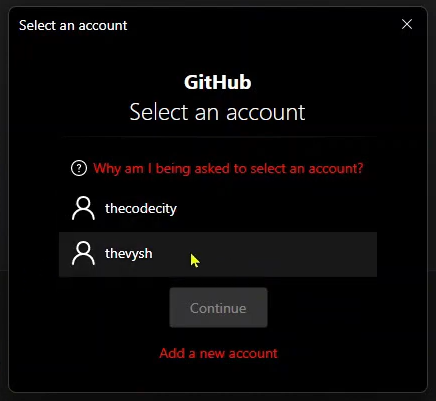
In my case, this didn’t immediately solve the problem (more on that in a sec!), but it’s an essential first step.
Reason 2: Permission Denied! (The Branch Protection Blues)
So, I ran the git pull origin main --rebase command, and I still got the “Failed to push some refs” error. Frustrating, right? That’s when I realized the issue might be something else entirely: permissions.
In many development environments, the main (or master) branch is protected. This means you can’t directly push changes to it. This is a good thing! It helps prevent accidental breaking changes from being introduced into the main codebase.
The Solution: The Feature Branch Workflow
The solution is to create a new branch, push your changes to that branch, and then create a pull request to merge your changes into the main branch. This is a standard workflow in many collaborative development environments.
Here’s how it works:
- Create a new branch:
git checkout -b feature/new-feature
This creates a new branch calledfeature/new-featureand switches you to it. Name your branch something descriptive and related to the feature you’re working on. - Make your changes (if you haven’t already): In my case, I already had my “main.py” file with the “Hello, world!” code.
- Push your new branch:
git push origin feature/new-feature
This pushes your new branch to the remote repository. - Create a Pull Request: Now, go to your GitHub or GitLab repository. You should see a notification asking if you want to create a pull request for your newly pushed branch. Click the button and follow the instructions.
The pull request will send a notification to the maintainers of the repository (usually your team lead or a senior developer). They’ll review your code, and if everything looks good, they’ll merge your changes into the main branch.
The “Why” Behind Branch Protection
Branch protection is a crucial part of a healthy development workflow. It ensures that changes are reviewed before they’re integrated into the main codebase, reducing the risk of errors and improving code quality.
Here’s a table summarizing the two main reasons for the “Failed to push” error and their solutions:
| Reason | Solution |
|---|---|
| Remote repository has existing commits | git pull origin main --rebase to integrate remote changes before pushing |
| Permission denied on the main branch | Create a new branch, push to that branch, and create a pull request. |
Extra Tips and Tricks for Git Troubleshooting
Here are a few more tips and tricks that I’ve learned over the years to help you avoid and troubleshoot Git issues:
- Always Pull Before You Push: Get into the habit of running
git pull origin main(orgit pull origin <your_branch>) before you start working on your code each day. This ensures that you have the latest version of the codebase and reduces the risk of conflicts. - Commit Often: Small, frequent commits are much easier to manage than large, infrequent ones. They also make it easier to revert changes if something goes wrong.
- Write Clear Commit Messages: A good commit message should explain why you made the changes you did. This will help you (and others) understand the history of your codebase.
- Use a Git GUI: Tools like GitKraken, Sourcetree, and GitHub Desktop can make Git easier to use, especially for complex operations like rebasing and merging.
- Don’t Be Afraid to Ask for Help: If you’re stuck, don’t hesitate to ask a colleague or search online for solutions. There’s a huge Git community out there, and plenty of people are willing to help.
- Configure your SSH Keys: Avoid having to re-enter your username and password, by configuring your SSH keys with Github or Gitlab, this will make your workflow even smoother.
Key Takeaways
- The “Failed to push some refs” error is a common Git problem that can be caused by a few different things.
- The most common causes are conflicts with existing commits in the remote repository and permission restrictions on the
mainbranch. - The
git pull origin main --rebasecommand is a powerful tool for resolving conflicts with remote commits. - The feature branch workflow is a standard practice for collaborating on Git projects and avoiding direct pushes to the
mainbranch. - Always pull before you push, commit often, and write clear commit messages.
FAQ: Your Git Questions Answered
Q: What does “refs” mean in the error message “Failed to push some refs”?
A: “Refs” is short for “references,” which are pointers to commits in your Git repository. The error message means that Git was unable to update the references on the remote repository to match your local repository.
Q: I’m still getting the error after trying the solutions mentioned above. What should I do?
A: Double-check your remote repository URL. Make sure you have the correct URL and that you have access to the repository. Also, make sure you have the latest version of Git installed.
Q: What’s the difference between git merge and git rebase?
A: Both git merge and git rebase are used to integrate changes from one branch into another. However, git merge creates a new merge commit, while git rebase rewrites the commit history to make it look like the changes were made directly on the target branch. git rebase generally results in a cleaner, more linear history.
Q: Is it safe to use git rebase?
A: git rebase can be a powerful tool, but it can also be dangerous if used incorrectly. Never rebase commits that have already been pushed to a shared repository, as this can cause problems for other developers.
Q: How do I undo a rebase?
A: If you’ve messed up a rebase, don’t panic! Git has a mechanism to help. Use the command ‘git reflog’ to view a log of where your HEAD has been. Identify the commit before you started the rebase, and then use ‘git reset –hard [commit-hash]’ to return to that state. Warning: This will discard any changes made during the rebase, so make sure you haven’t lost any important work.
Q: How do I create a pull request on GitHub/GitLab?
A: After pushing your new branch, GitHub and GitLab usually display a banner prompting you to create a pull request. Click the button and follow the on-screen instructions. You’ll be able to specify the target branch (usually main), add a title and description, and assign reviewers.
Q: What do I do if my pull request gets rejected?
A: Don’t take it personally! A rejected pull request simply means that the maintainers have found some issues that need to be addressed. Review their feedback, make the necessary changes, and then update your pull request. Communication is key!
Conclusion: Git Mastery is Within Your Reach!
The “Failed to push some refs” error can be frustrating, but it’s a common problem that can be solved with a little bit of Git knowledge. By understanding the underlying causes and following the solutions outlined in this blog post, you can conquer this Git gremlin and push your code with confidence. Now go forth and code! And remember, when in doubt, consult the Git documentation or ask for help from the community. Happy coding!